Notes
Notes are Markdown documents in your notes folder. Everything else in Nexum - Unity links, tickets, annotations, daily journal entries - can attach to or become a note.
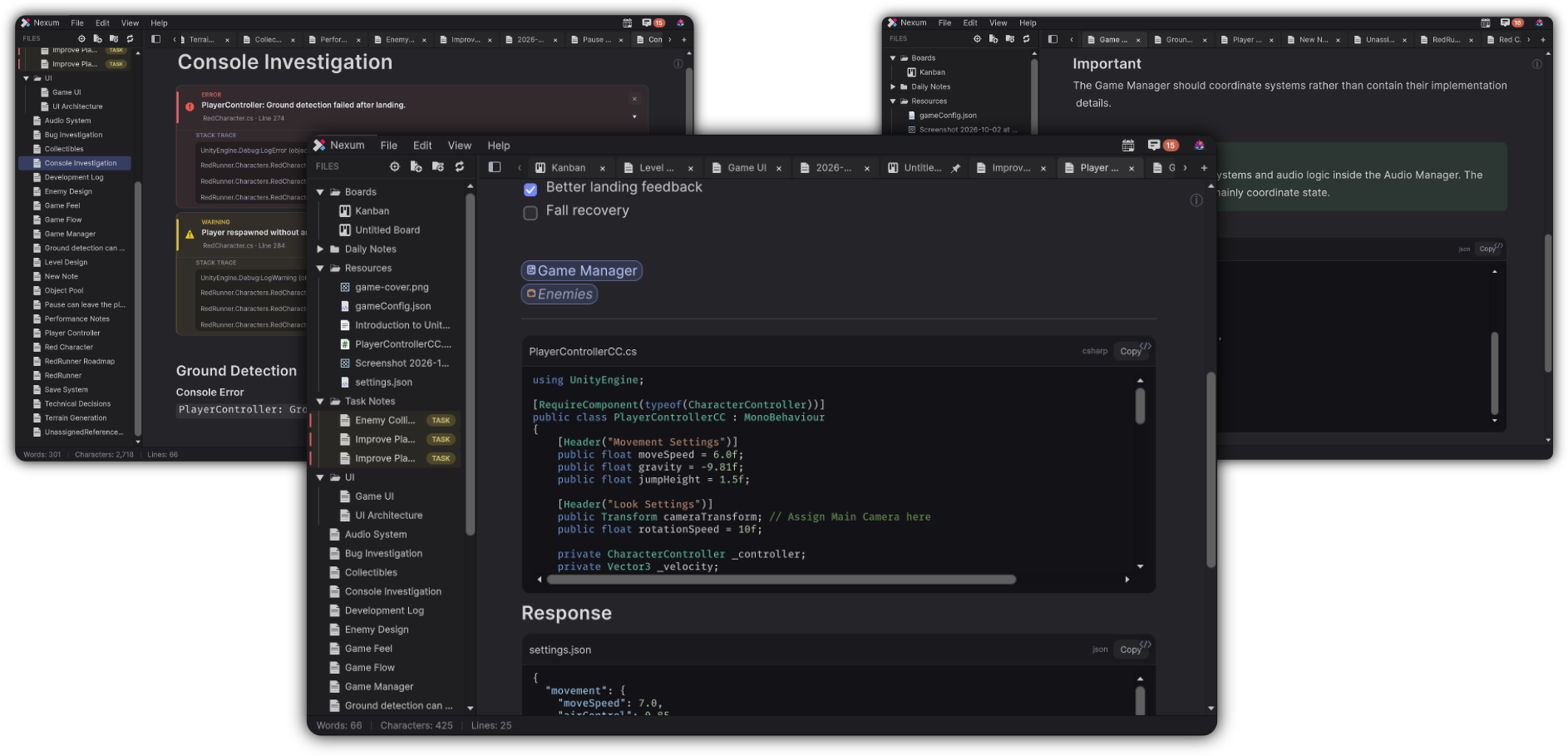
Create a note
- File → New Note
- Quick Start → Create New Note
- Files explorer → New Note
- Click a ghost
[[Missing Note]]link - Annotation / Console flows that offer Create Note
Default untitled name: Untitled (Nexum picks a free name if needed).
Note types
Nexum treats notes as one of these kinds:
| Kind | How you recognize it | Notes |
|---|---|---|
| Regular | Normal .md file |
Default writing document |
| Task | Linked to a Kanban ticket; explorer can show a TASK badge | Title follows the ticket; rename from the ticket |
| Dated (Daily Note) | Filename yyyy-MM-dd.md; explorer can show a DAY badge |
Opened from Daily Notes; uses the Daily Note template |
Chrome on Task Notes and Daily Notes can be hidden in Preferences (Hide task-note styling, Hide daily-note styling) if you want a quieter Files list.
Task Note chrome
When a Task Note is open, Nexum can show a strip with status (Missing / Completed / Active), priority, column, and Show in Board.
Daily Note chrome
Daily Notes can show a DAILY NOTE eyebrow with the weekday and date.
Titles
The note title field mirrors the file name (without extension). Rename in the title field or in the Files explorer.
Exceptions:
- Task Notes - rename by renaming the ticket
- Daily Notes - keep the date-based file name
Tabs and dirty state
Open notes appear as tabs. Unsaved changes are tracked; Auto Save (default on) writes after a short pause. File → Save always saves immediately.
Connecting notes
Notes become useful when they stop being islands:
| Connection | How |
|---|---|
| Other notes | [[Note Name]] |
| Tasks | Reference a Task… / task wiki links / Properties |
| Unity objects | Drag onto the note |
| Resources | Drag files, paste images, or link from Properties |
| Boards | Embed or open a .kanban from a wiki/embed flow |
See Properties & Relationships for the Related graph.
Practical example
You are chasing a respawn bug:
- Create Player Investigation
- Drag the Player Prefab into the note (embed or reference)
- Paste a Console exception into a capture (or create from Console)
- Link
[[Health Component Notes]] - When it becomes actionable, create a Kanban ticket and attach this note / create a Task Note
The investigation stays readable; the ticket stays trackable; the Prefab stays one click away.
The investigation stays readable. The ticket stays trackable. The Prefab stays one click away.