Unity Console
Nexum can capture selected Unity Console rows into a note or a Kanban ticket so the error, stack, and investigation stay together. The same shortcut can turn a selected Hierarchy object into a ticket. Stack traces stop living only in a scrolling Console.
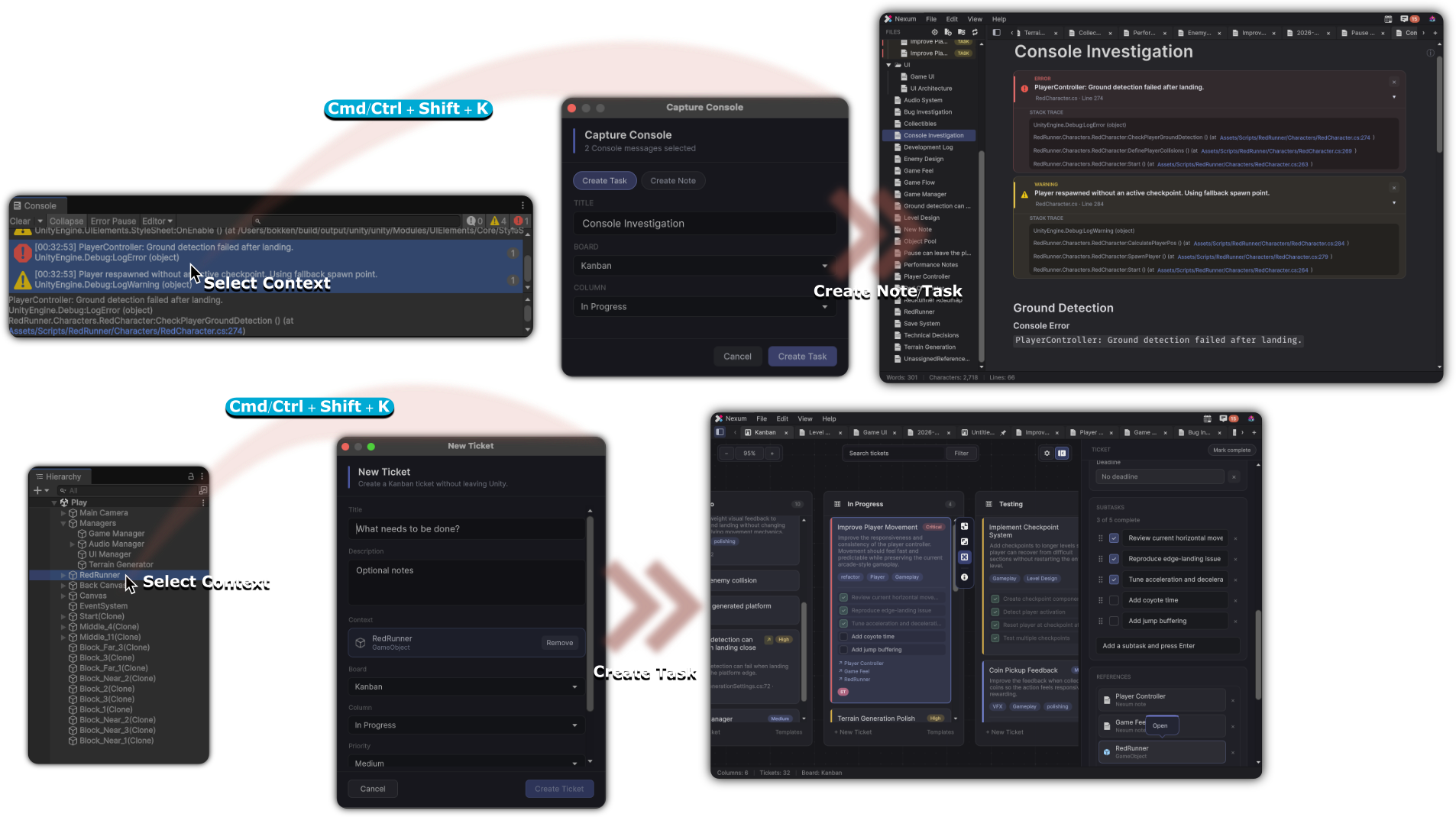
nexum-console block.Capture Console
- Select one or more rows in the Unity Console
- Focus the Console
- Press the Create Ticket shortcut (Cmd+Shift+K / Ctrl+Shift+K by default)
If Console rows are selected, Nexum opens Capture Console.
If not, the same shortcut opens the normal New Ticket flow.
There is no separate Tools menu item for Console capture - the Console-focused shortcut is the entry point.
Capture Console popup
Choose:
- Create Task
- Create Note
When creating a task, pick Board / Column as needed. Confirm with Create, or Cancel.
Captured rows are stored as fenced blocks with language nexum-console, including severity (Log, Warning, Error, Exception) and message content.
After capture
- Open the note or ticket and keep investigating under the capture
- Link Unity objects and related notes
- Mark the Annotation / ticket complete when the bug is gone
Example
A NullReferenceException appears while testing respawn:
- Select the Console entries
- Capture → Create Note titled “Respawn NRE”
- Drag the Player Prefab into the note
- When you know the fix, Create Task on your board and link the note
The next time the bug returns, you are not starting from a blank stack trace.