Kanban & Task Notes
Kanban boards turn ideas into visible work without leaving Unity. Tickets can carry description, tags, assignees, deadlines, attachments, Unity and file context, and a dedicated Task Note.
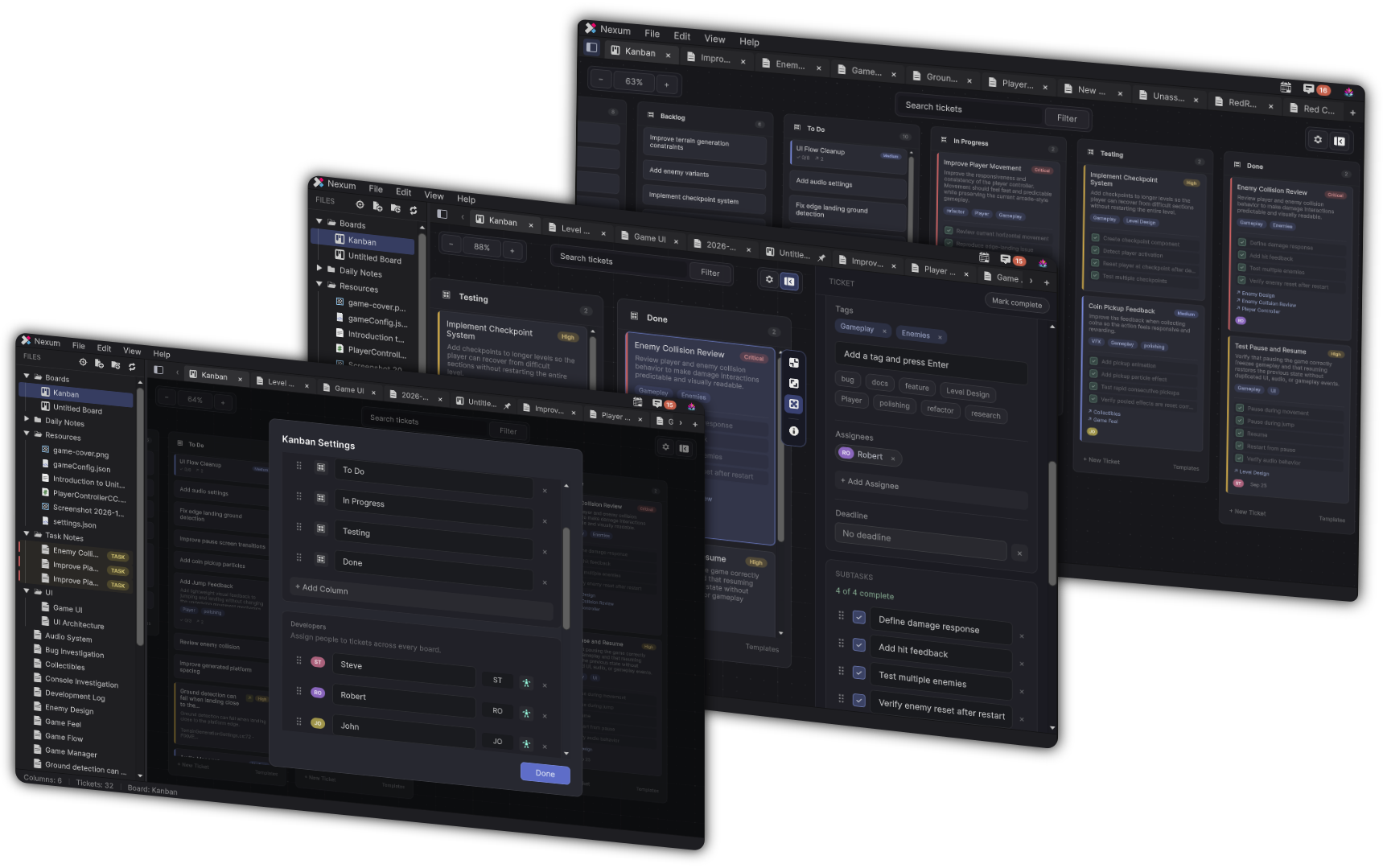
Create a board
- File → New Kanban Board
- Quick Start → Create Kanban Board
- Files explorer → New Kanban Board
Boards are .kanban files. Default name: Untitled Board.
Where new boards are created is controlled in Preferences → Kanban → Create Boards in.
Empty boards prompt you to Start with a column / + Add Column.
Board chrome
Typical board controls:
- Search tickets
- Filter
- Board settings
- Inspector visibility
- Zoom (− / percentage / +)
View → Board Settings… (while a board is active) opens column, developer, and template configuration.
View → Show/Hide Inspector toggles the ticket inspector. New boards can start with the inspector collapsed (Preferences → Kanban → Start with inspector collapsed).
View → Reset Zoom restores zoom.
Columns and tickets
Add columns from the board. Cards live in columns and can be dragged between them.
Create a ticket
- From a column
- File → New Ticket… (when a board is active)
- Quick Ticket window (New Ticket)
- Drop Unity objects or files onto the board (creates a ticket with that context)
- Annotation / Console Create Task flows
Quick Ticket fields include Title, Description, Board, Column, Priority, Assignees, and Context.
Default Create Ticket shortcut: Cmd+Shift+K / Ctrl+Shift+K (rebindable in Preferences). With the Unity Console focused and rows selected, the same shortcut opens Capture Console instead.
Priority
None, Low, Medium, High, Critical - colors configurable under Preferences → Kanban → Severity Colors.
Density
Per-card and default density:
- Compact
- Comfortable
- Detailed
Default for new tickets: Preferences → Kanban → Default density.
The selected-card side rail can switch density and open Ticket properties.
Filters
Filter by search text and deadline buckets such as No Deadline, Upcoming, Due Today, Overdue, Completed. Empty filter state: Nothing matches with Clear search & filters.
Ticket inspector
When a ticket is selected, the inspector groups:
| Section | Contents |
|---|---|
| Ticket | Mark complete |
| Identity | Icon, title |
| Content | Description, Task Note + Create Note |
| Organization | Column, Priority, Tags, Assignees, Deadline |
| Subtasks | Checklist-style subtasks |
| References | Linked notes / Unity / resources (+ Add Reference, drop zone) |
| Attachments | Files (+ Add Attachment) |
| Metadata | Created, Updated, Completed |
| - | Delete Ticket |
Edit menu on a board (with a ticket selected): Copy Ticket Title, Duplicate Ticket, Delete Ticket.
Confirm-before-delete for tickets is a preference.
Task Notes
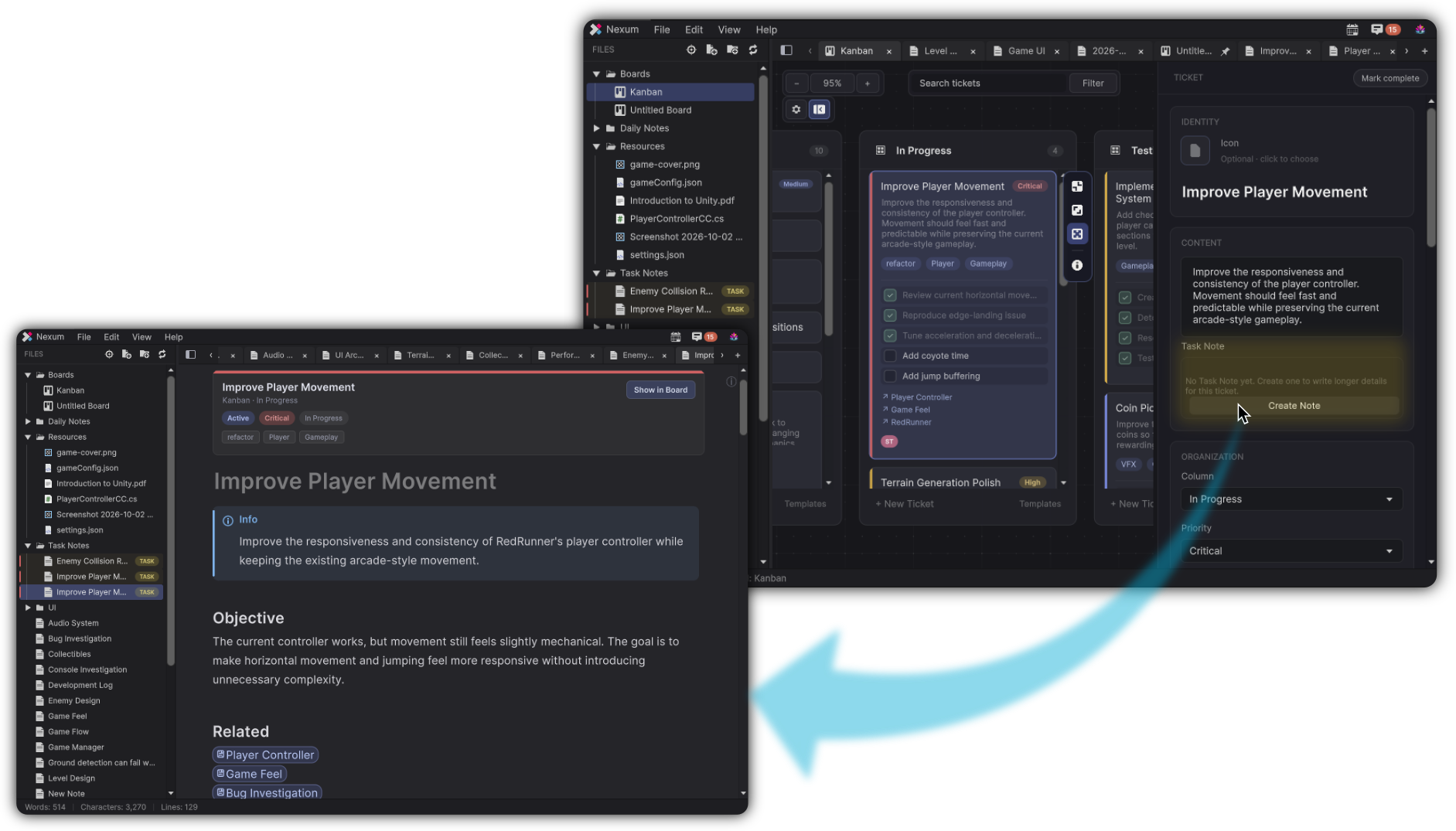
A Task Note is a Markdown note owned by a ticket - use it when the card description is not enough.
Create from the inspector (Create Note). The note title follows the ticket. Explorer can show a TASK badge and accent (unless styling is hidden).
From the Task Note chrome: Show in Board.
Preferences → Kanban → Task Notes:
- Where to create Task Notes (Board folder / Notes root / Custom folder)
- Delete task note with ticket
- Confirm before deleting tickets
Board settings
Board Settings covers:
- Columns
- Developers (assignees)
- Templates (+ Add)
Built-in template names include Bug, Feature, Research, Documentation, Refactor.
Drop workflows on boards
| Drop | Result |
|---|---|
| Unity objects / files onto the board | New ticket with context |
| Notes / resources / Unity onto inspector zones | Link as note or reference |
Why boards belong next to notes
A ticket titled “Fix respawn” is easy to lose. A ticket that links the investigation note, the Player Prefab, and a Console capture stays actionable when you return weeks later.