The Workspace
Nexum’s window is built around a notes folder on disk, a Files explorer, tabs for open documents, and context tools - Daily Notes, Annotations, Properties, and Preferences.
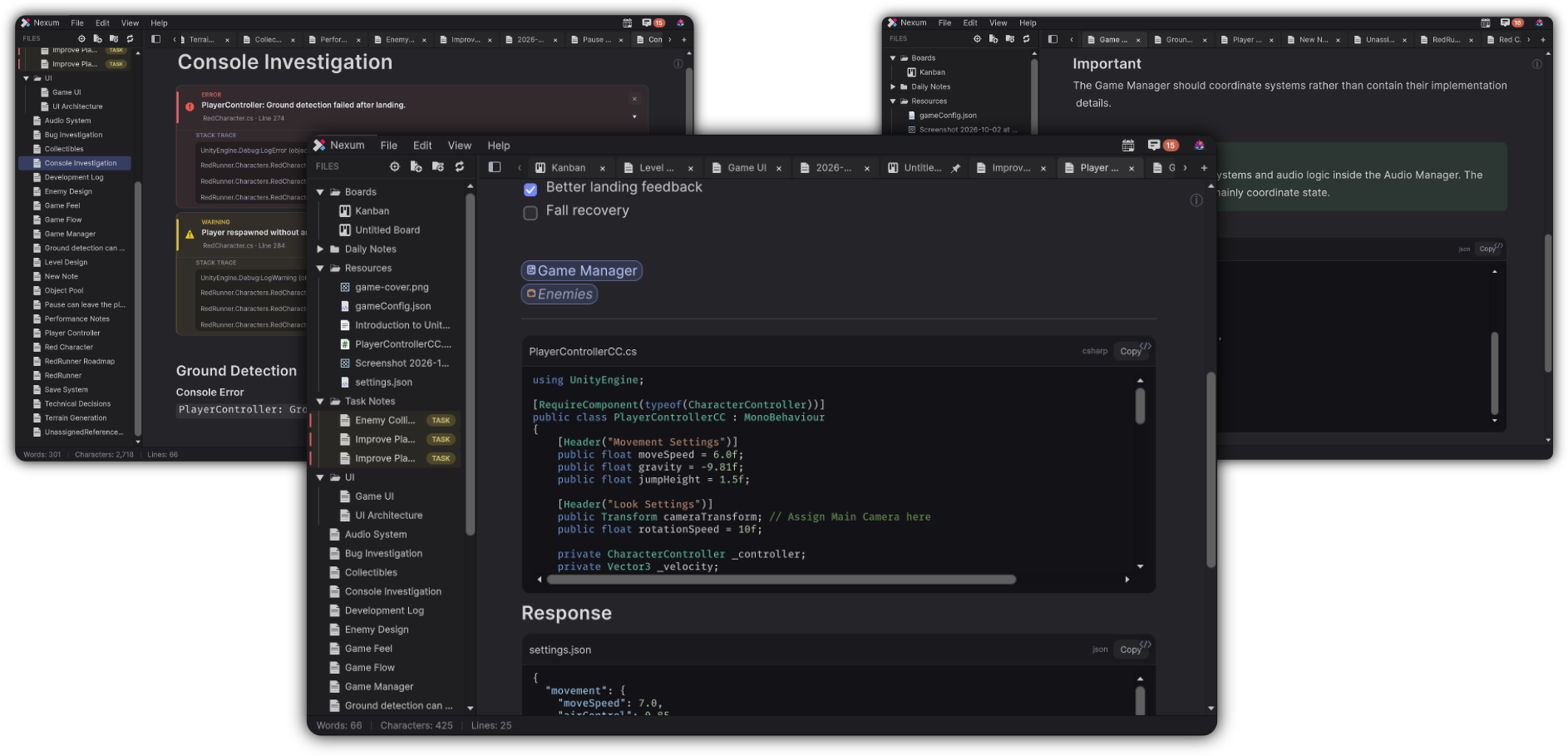
Layout
| Area | Purpose |
|---|---|
| Menu bar | Nexum, File, Edit, View, Help, plus Daily Notes and Annotations |
| Files sidebar | Browse notes, boards, folders, and Resources |
| Tabs | Open documents (notes and boards) |
| Editor / board | Writing surface or Kanban canvas |
| Status | Lightweight document stats when a note is active |
The Files sidebar can be collapsed from View → Files. Collapsing it hides the sidebar completely so the writing column can use the full width.
Files explorer
Header label: FILES.
Toolbar actions:
- Reveal the current file in the system file browser
- New Note / New Kanban Board
- New Folder
- Refresh
Context menus
On empty space, folders, or files you can:
- New Note
- New Kanban Board
- New Folder
- Paste
- Cut
- Copy
- Rename
- Delete
Deletion can require confirmation (Preferences → Notes → Confirm before deleting).
Resources folder
The Resources folder (name configurable) is the default destination for imported images and files. It is protected:
- It cannot be renamed from the explorer
- It cannot be cut or deleted like a normal folder
Change the resource folder name and location under Preferences → Workspace.
Unity drops on Files
Unity drops onto the Files explorer are rejected. Use the note surface or a Kanban board for Unity context.
Tabs and documents
Open notes and boards appear as tabs. Switching tabs activates that document. Inactive tabs can stay path-only until you activate them, so reopening the window stays responsive.
A blank tab is labeled New Tab and shows Quick Start until you create or open something.
File → Save saves the active document. With Auto Save on (default), notes also save after a short pause in typing.
Go to File
File → Go to File…, Quick Start, or the Go to File shortcut opens a switcher.
Filters:
- All
- Notes
- Boards
- Resources
Also available: File → Open from Disk… for picking a file outside the current browse flow.
Session restore
When you close Nexum, open tab paths are remembered. Reopening restores those tabs and focuses the last active document.
If nothing is restored (fresh install or empty session), Welcome is opened.
Storage Diagnostics
Nexum → Storage Diagnostics… opens Nexum Storage Diagnostics.
Use it to inspect:
- Database / index / notes / boards status
- Index queue and search cache
- Reveal Notes / Reveal Data
- Vacuum
- Refresh
Reset Workspace
Reset Workspace permanently deletes notes, boards, resources, relations, annotation links, identities, and the search database for the current notes folder. Unity project assets outside the notes folder are not touched.
After a successful reset, Nexum recreates Welcome.md and opens it.
Destructive by design
Reset Workspace is for a clean slate on the notes folder - not a way to tidy a single file. Prefer delete in the explorer for ordinary cleanup.
Updates and About
- Nexum → Check for Updates…
- Help → About Nexum - product name, version, short description, and links (Documentation, Report an Issue, Check for Updates, DivinityCodes Roadmap, More Tools)
About chips highlight: Notes, Boards, Daily, Relations.